How to resize product photos for Shopify
A Shopify product photo has to do two jobs. It must look sharp when a shopper zooms in on the product page, and it must still show the whole product when the theme cuts it to the card shape in a collection grid. This page resizes your photo to Shopify’s 2048-pixel suggestion, pads or crops it to one shape, applies the phone’s rotation, fills transparency for JPG, and shows the grid crop before you upload.
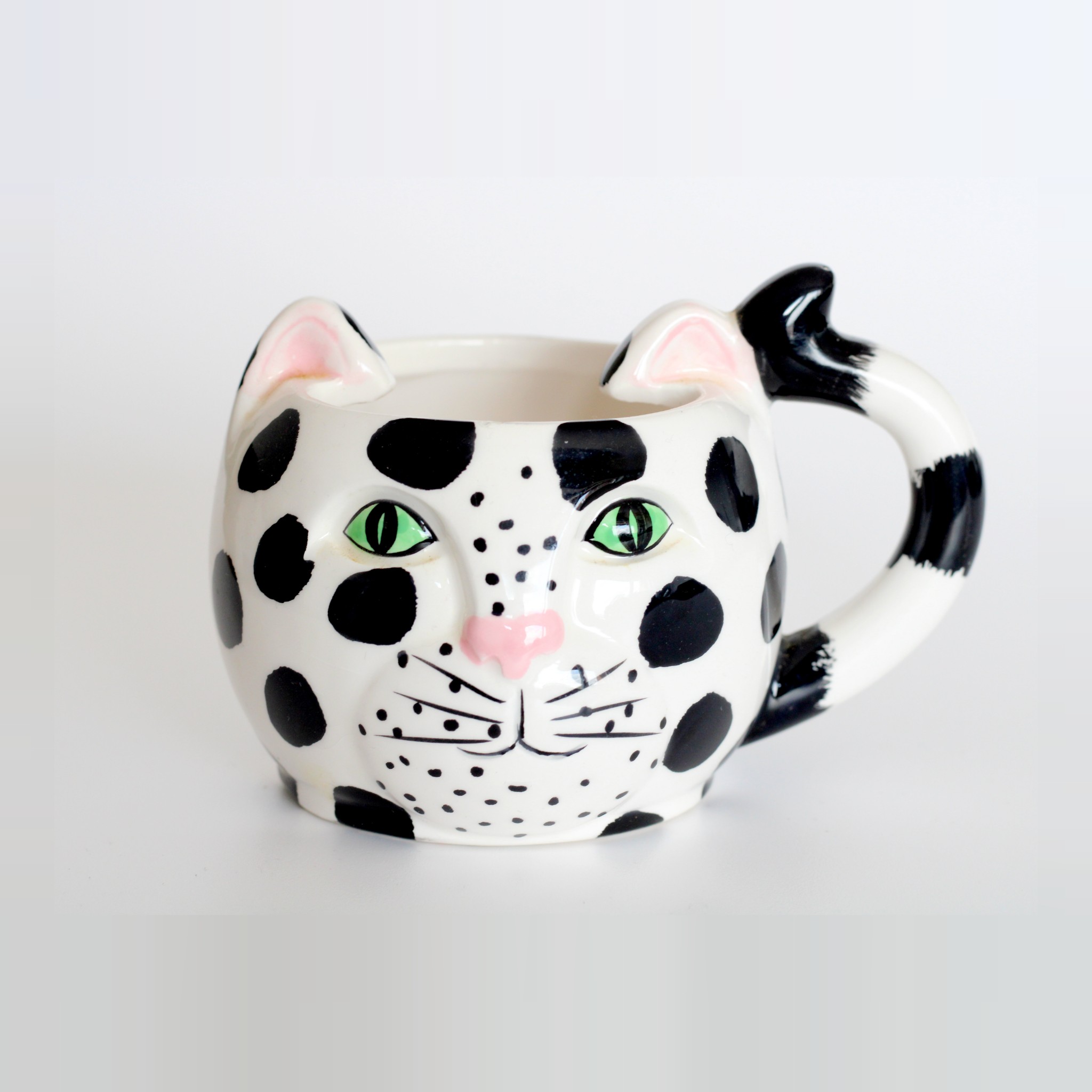
- Drop one or more product photos. A real 21-megapixel camera photo of a cat mug is already resized below so you can see the result first.
- Pick a shape. Square 2048×2048 is Shopify’s suggestion. Pick 4:5 if your theme uses portrait cards, as Horizon does by default.
- Fit the whole product with padding, or crop with zoom and the sliders. Check the grid preview to see what your theme’s cards keep.
- Download the JPG, WebP or PNG: upright, sRGB, no metadata, under 20 megapixels and 20 MB. Add it to the product in your Shopify admin.
What Shopify says about product images (read October 25, 2026)
Every line below is copied from Shopify’s own help center or developer docs as they read on October 25, 2026. The help pages carry no edit date.
| Topic | Shopify’s words | Source |
|---|---|---|
| Recommended size | “For square product images, a size of 2048 x 2048 px usually displays best.” | Shopify Help: Product media types |
| Largest size | “Your product and collection images can be any size up to 5000 x 5000 px, or 25 megapixels.” The files page agrees: “Maximum of 25 MP (megapixels)”. | Shopify Help: Product media types; Shopify Help: Uploading and managing files |
| Upload limit on another page | “Images uploaded to Shopify can't exceed either of the following limits:” “20 megapixels” and “20 megabytes”. The same page adds: “There are different image and file size limits for uploading product images.” | Shopify Help: Uploading images |
| File size | “Product and collection images need to have a file size smaller than 20 MB to be added to Shopify.” | Shopify Help: Product media types |
| Shape | “To make your images display to be the same size, you need to use a consistent aspect ratio, or height-to-width ratio, for all the images that you add as your featured, or main, images.” Accepted range: “Between 100:1 and 1:100”. | Shopify Help: Product media types; Shopify Help: Uploading and managing files |
| Who decides the crop | “The exact way that images display on your store depends on your online store theme, but all themes support adding images.” | Shopify Help: Product media types |
| File type | “The best file type for most product images is PNG, followed by JPEG. Other accepted file types are TIFF, BMP, GIF, SVG, HEIC, and WebP.” | Shopify Help: Product media types |
| Compression | “Images don't need to be manually compressed prior to uploading. Always upload the best quality images that you can provide.” | Shopify Help: Uploading images |
| Colour | “When images are displayed on your online store, their color profiles are removed.” | Shopify Help: Uploading images |
| Rotation | “If images display in unexpected orientations after upload, this is usually caused by EXIF (Exchangeable Image File Format) metadata.” | Shopify Help: Media editor |
| How many | “You can add a maximum of 250 images, 3D models, or videos to a product.” | Shopify Help: Adding product media |
Where Shopify’s own pages don’t agree
20 or 25 megapixels? The product media page and the files page allow 25 megapixels (5000 × 5000). The “Uploading images” page sets the limit at 20 megapixels, says product images have different limits, and in its own tips says “Upload higher resolution images up to 5000px x 5000px or 25 megapixels”. We couldn’t tell from the pages which limit the product upload enforces, so this tool never makes a file over 20 megapixels. The largest square under 20 megapixels is 4472 × 4472 (4472 × 4472 = 19,998,784 pixels). That number is our arithmetic; it isn’t on any of the Shopify pages we read.
PNG or JPEG? The product media page ranks PNG first. The “Uploading images” page says “Use JPEG for product images or slideshows” and keeps PNG for logos, icons and transparency. For a photo, PNG is much bigger with no difference you can see: on the sample below, 3,664,176 bytes as PNG against 230,928 as a quality-90 JPG. So JPG is the default here. PNG is one click away if you want it.
Compress or not? The product photography guide says “A good image size to aim for is no larger than 200 KB, with lower numbers being better.” The “Uploading images” page says not to compress and to upload the best quality you have, and Shopify’s CDN makes smaller copies anyway: “When you add an image, different sizes are automatically created for use in different areas of your online store theme.” The default here is quality 90. The “Under 200 KB” option lowers the quality one step at a time until the file fits.
What is 20 MB? Shopify doesn’t say if a megabyte is 1,000,000 or 1,048,576 bytes. This page counts 20,000,000, the stricter of the two. A JPG from this page is far below either.
Is square right? 2048 × 2048 is Shopify’s suggestion for square images, not a rule. Horizon, the other Shopify-made theme we checked, uses 4:5 portrait cards by default (below). If your theme uses portrait cards, pick 4:5 so the card doesn’t cut off the sides of your product.
How themes crop product photos
Shopify leaves the crop to the theme, so we read the code of two of Shopify’s own free themes on GitHub (Shopify/dawn on GitHub, Shopify/horizon on GitHub) and loaded both demo stores in Chrome on October 25, 2026, signed out.
- Dawn (source release v16.0.0): collection cards are square (
assign ratio = 1), portrait (assign ratio = 0.8) orassign ratio = card_product.featured_media.aspect_ratio(“Adapt to image”), and the collection grid’s setting defaults to"default": "adapt". So out of the box each card takes the shape of its product’s first photo. The image fills the card withobject-fit: coverandobject-position: center center. Product page thumbnails are square (padding-bottom: 100%), also cover. - Horizon (source theme_version 4.3.0): product cards are
assign ratio = '4 / 5'(portrait, the default),'1','16 / 9'or adapt, with the image set to cover. - Both support focal points, which you set on the image in the admin (Shopify lists Dawn 7.0.0 and higher and the whole Horizon family). Shopify: “Focal points always display in frame, even if you have a theme that crops your image to fit the layout.” The preview here can’t read focal points, so it shows the centred crop you get without one.
| Measured on the demo stores, Oct 25, 2026 | Window 1366 px | Window 390 px (phone width) |
|---|---|---|
| Dawn demo, collection cards | 269 × 269 (square), cover, centred | 178 × 178, 2 columns |
| Horizon demo, collection cards | 309.5 × 386.9 (4:5), cover, centred | 189 × 236.3, 2 columns |
| Dawn demo, product page | first photo 713 × 713, the rest 351.5 × 351.5 in two columns (its photos are square) | not measured |
| Horizon demo, product page | 428 × 535 (4:5) in two columns, cover; 4 of 8 photos were 0.835 wide and got cut to 0.8 | not measured |
The demo stores run older versions than the code we read (Dawn 15.0.0, Horizon 3.2.0) and are set up by Shopify, so your store’s settings can differ. The phone-width product pages timed out and aren’t in the table. Third-party themes weren’t checked.
One shape for every product
Shopify’s media editor page explains the uneven grid: “Using a consistent aspect ratio for all the images of a particular type makes them display better side by side, because they all display as the same size.” In Dawn’s default “Adapt to image” setting, a 0.77-wide mug photo next to a square one makes a taller card, and the row goes ragged. In a fixed-shape grid the cards line up, but each photo is cut to the card. The fix is the same both ways: give every product’s first photo the same shape before upload, with the product inside the area the card keeps. Pro runs one setting over up to 50 photos at once so the whole catalogue comes out the same shape.
Themes can also do it on the fly: “Themes can also use the Shopify CDN to request consistent sizing for images that might not be saved in the same aspect ratio.” Shopify’s Liquid image filter (shopify.dev: image_url filter) crops to the centre unless told otherwise (“The default value is center.”) and can add bars instead: “Specify a color to pad the image if the specified dimensions result in an aspect ratio that differs from the original.” Whether your theme uses those options is up to its code.
Transparent PNGs and backgrounds
Shopify accepts transparent images: “The PNG format also supports transparency in images.” JPG can’t, so when you save a cut-out product as JPG this page fills the transparent parts with white or your colour instead of leaving them to whatever the browser does. Choose WebP or PNG with “Keep transparent” to keep them. Dawn marks its card image box media media--transparent, so the card’s own background shows through. The same background setting fills the padding when you fit a wide photo into a square. “Extend the photo’s own edges” stretches the photo’s outermost strip outward, which works on a plain studio backdrop like the sample’s. If your product touches the edge of the frame, use white or a colour.
Sideways photos and file names
Phone photos are often stored sideways, with an EXIF tag telling apps to turn them upright, and Shopify’s media editor page notes that “Different applications interpret EXIF orientation data differently.” This page applies the rotation to the pixels and saves the file without EXIF, so it can’t turn again later. The download is named like katzenbecher-shopify-2048x2048.jpg, which follows two rules from Shopify’s files page: “Image file names can't end with the following words - pico, icon, thumb, testing, small, compact, medium, large, or grande.” and “Avoid using underscores immediately before image dimensions in the filename. For example, use product-image-5x4.jpeg instead of product_image_5x4.jpeg.”
Measured on the sample
| Setting | File | Size |
|---|---|---|
| Square, fit, 5% space, extended edges (the image above) | 2048×2048 JPEG, quality 90 | 230,928 bytes |
| Portrait 4:5, fit | 2048×2560 JPEG, quality 90 | 241,915 bytes |
| Square, crop (centre) | 2048×2048 JPEG, quality 90 | 352,170 bytes |
| Square, fit, white background | 2048×2048 JPEG, quality 90 | 232,166 bytes |
| Square, fit, WebP | 2048×2048 WebP, quality 90 | 107,870 bytes |
| Square, fit, PNG | 2048×2048 PNG | 3,664,176 bytes |
| Square, fit, “Under 200 KB” | 2048×2048 JPEG, quality 86 | 179,454 bytes |
| Square, fit, largest size (Pro) | 4472×4472 JPEG, quality 90 | 947,691 bytes |
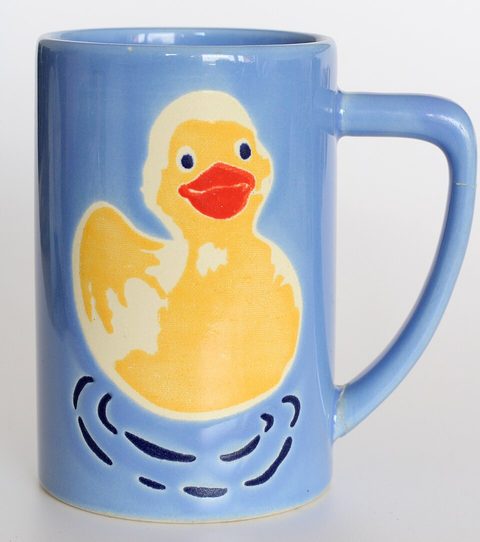
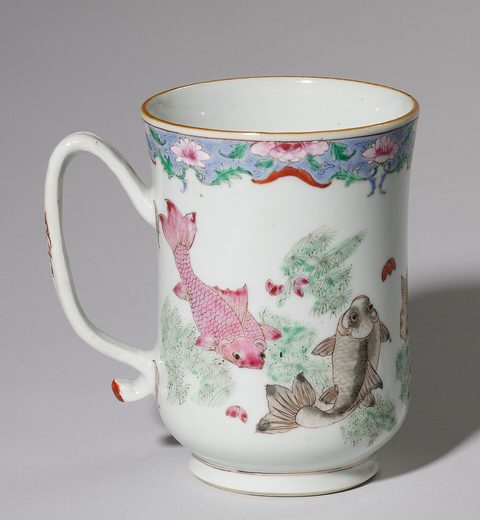
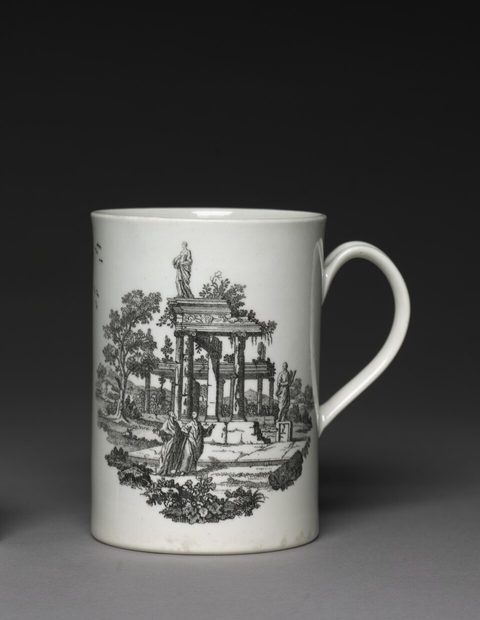
Sample: “Katzenbecher” (cat mug) by Tetzemann on Wikimedia Commons, released under CC0: a 5328×4000 Canon EOS 2000D photo, 1,327,838 bytes, used unchanged. At 21.3 megapixels it is over the 20-megapixel figure and under the 25-megapixel one, so it shows the conflict above on a real file. The other three cards use CC0 photos from Commons: “Entenbecher” by Tetzemann and two Cleveland Museum of Art open-access photos (mug 1961.183 and Worcester Porcelain mug 1972.177). Sizes were measured in Chrome with this page’s own code. Other browsers’ JPEG and WebP encoders give slightly different byte counts.

What this tool doesn’t do
It doesn’t connect to your store or upload anything. You download the files and add them under Products → Media yourself. It doesn’t remove backgrounds or retouch, and it won’t make a small photo sharper. It warns you when it has to enlarge. It can’t see your theme’s settings or focal points, so the grid preview shows the two demo stores’ card shapes, not your store’s. For logos and banners, which Shopify treats differently, see the Uploading images page. To shrink other images there is the image compressor.
The Shopify pages were read on October 25, 2026 in Chrome (the product media page returns HTTP 403 to a plain script). We did not log in to a Shopify admin or upload a test image, so upload behaviour at the 20 and 25 megapixel limits is not tested here. Gridloom is not affiliated with Shopify. Shopify is a trademark of Shopify Inc.
Frequently asked questions
What size should Shopify product images be?
2048 × 2048 pixels for square images. Shopify’s help says that size “usually displays best”. Use the same shape for every product’s main photo. If your theme uses 4:5 portrait cards, 2048 × 2560 keeps the same detail.
What is the Shopify image size limit?
Shopify’s product media page says up to 5000 × 5000 px or 25 megapixels, and smaller than 20 MB. Its “Uploading images” page says uploads can’t exceed 20 megapixels or 20 megabytes. Stay under 20 megapixels and you pass both. This page always does.
What aspect ratio should Shopify product images be?
Shopify doesn’t set one. It asks for a consistent aspect ratio for all main images. Square (1:1) matches its 2048 × 2048 suggestion and Dawn’s demo store. 4:5 matches Horizon’s default portrait cards.
Why are my Shopify product images different sizes?
Your photos have different shapes. In Dawn’s default “Adapt to image” setting each card takes the shape of its product’s first photo, so mixed shapes make ragged rows. Resize every main photo to one shape, or change the collection’s image ratio to square or portrait.
Should Shopify product photos be square or portrait?
Match your theme’s card shape. Dawn’s demo store shows square cards, and Horizon’s cards are 4:5 portrait by default. A square photo in a 4:5 card loses 10% on each side, and a 4:5 photo in a square card loses 10% top and bottom.
Why does Shopify crop my product images?
Your theme sets the card shape and fills it with the photo, centred (object-fit: cover in both Dawn and Horizon). Anything outside that shape is cut. Upload photos in the card’s shape, set a focal point on the image, or switch the theme’s image ratio to “Adapt to image”.
Why are my Shopify product images blurry?
Usually the upload has too few pixels for the space. A Horizon card on a 390 px phone is 189 CSS pixels wide, about 570 device pixels on a 3× screen, and a 2048 px image covers that with room for zoom. Shopify’s help also explains that themes load a smaller copy first (lazy loading) and swap in the sharp one a moment later.
Why does Shopify say my image is too large?
If the file is under 20 MB, Shopify’s help says the problem is the megapixel count, not the file size. Resize it to 20 megapixels or less. This page’s largest square is 4472 × 4472, and its default is 2048 × 2048 (4.2 MP).
Does Shopify support WebP?
Yes. WebP is on its list of accepted product image types, and Shopify’s help says it delivers WebP or AVIF to browsers that support them. This page saves WebP if you choose it, which keeps transparency at a smaller size than PNG.
Can Shopify product images have a transparent background?
Yes, as PNG (or WebP). JPG can’t store transparency, so this page fills it with white or your colour when you save JPG. In Dawn the card’s background shows through transparent areas.
Should I compress images before uploading to Shopify?
Shopify gives two answers. Its photography guide suggests 200 KB or less. Its “Uploading images” page says images don’t need to be compressed and to upload the best quality you have, since Shopify makes smaller copies itself. This page defaults to quality 90 and has an “Under 200 KB” option.
Is it free, and are my photos uploaded?
Free for single images at 2048 px on the short side, with no watermark and no signup. Everything runs in your browser, and nothing is uploaded. Pro ($5 for 30 days, paid in USDC) adds the largest Shopify-safe size (up to 4472 × 4472) and up to 50 photos at once as a ZIP.