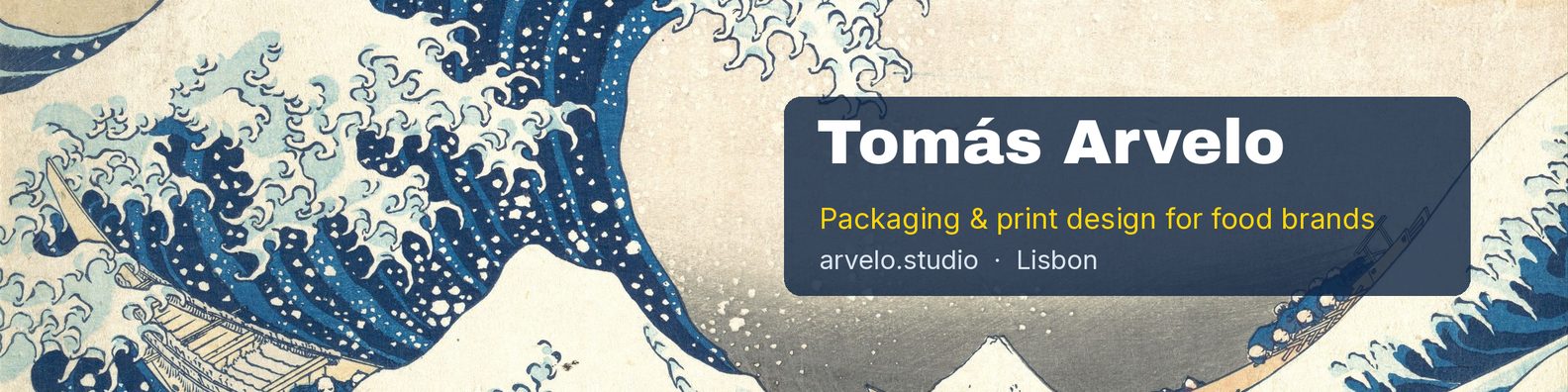

How to resize an image for a LinkedIn banner
A LinkedIn banner has two problems a normal resize doesn't fix. The shape is very wide (4:1 for a profile, almost 6:1 for a Page), and your photo or logo covers the lower-left. This page fixes the size and shows the covered part before you upload.
- Pick your banner image. A 2400×1350 sample (16:9, the wrong shape for LinkedIn) is already loaded so you can see the result first.
- Keep “Crop to fill” for a photo and move the slider to choose the part that shows. Choose “Fit beside the profile photo” if the image has text or a logo that must not be cut.
- Switch the preview between Phone and Desktop and check that nothing important sits under the photo or logo.
- Download the 1584×396 profile cover, the 1512×256 Page cover, or both as a ZIP.
- On LinkedIn, click Me, then View Profile, then the camera icon on your introduction section, choose Upload a single photo, then Apply.
LinkedIn banner sizes (October 2026)
All three LinkedIn Help pages were read on October 24, 2026. LinkedIn shows the profile cover article as last updated 7 months ago and the Pages article as last updated 2 months ago. Gridloom is not affiliated with LinkedIn.
Where your profile photo covers the banner
LinkedIn's help page says your cover image “appears behind your profile photo”, but it doesn't say where. So we measured it. On October 24, 2026 we loaded public LinkedIn profiles and Pages in Chrome at two window widths and read the positions of the cover and the photo. Converted to pixels in the files this tool makes:
| Where | On the 1584×396 profile cover | On the 1512×256 Page cover |
|---|---|---|
| Desktop (1366 px window) | The cover is shown at 782×196. A circular photo, about 260 px across in file pixels, covers x 65–324 from y 258 down, and runs off the bottom edge. | The cover is shown at 782×134. The square logo covers x 46–294 from y 111 down. |
| Phone-width browser (390 px window) | The cover is shown at 388×97 and the photo is much bigger relative to it: it covers x 98–621 from y 86 down. That's the left 39% of the banner. | The cover is shown at 388×66. The logo covers x 62–561 from y 128 down, the left 37%. |
The practical rule: in a 1584×396 profile cover, keep your name, headline and anything readable to the right of x≈620 px, and don't run text along the bottom-left. The dashed outline in the downloadable template marks the area that stayed clear in every view we measured. We measured the signed-out public view in Chrome. The signed-in view and the LinkedIn app can place the photo differently, and LinkedIn itself warns that “how your image appears may change based on the size of your web browser window and screen resolution”.
For Pages, LinkedIn's own advice is to “place key details away from the edges of your cover photo, especially in the lower-right corner”. Our measurement adds the lower-left, where the logo sits. That leaves the centre-right, which is where the “Fit beside the profile photo” mode puts your artwork.
1512×256 or 4200×700 for a company Page?
A lot of guides still give 4200×700 for the Page cover. LinkedIn's Pages help article currently lists 1512×256 as both the minimum and the recommended size. The two shapes are close (6:1 against 5.9:1), and the public Page we measured displayed its cover at 782×134 (5.84:1), which is nearer to 1512×256. If you already have a 4200×700 design, it will be scaled down and trimmed slightly. Both files must be PNG or JPEG under 3 MB, and that limit is easier to go over at 4200×700.
Why LinkedIn banners look blurry
LinkedIn's answer is short: “If your cover image appears blurry or pixelated, please choose an image with a larger file size. Photos will also look better than images with logos.” For Pages, it also suggests “a high-resolution JPEG instead of a PNG file”. Three things help:
- Upload exactly 1584×396 (or 1512×256 for a Page). A smaller image has to be enlarged, and enlarging can't add detail. The tool warns you when that happens.
- Don't over-compress. This tool saves JPG at 95% quality and only lowers it if a file would go over LinkedIn's limit. The sample's 1584×396 cover comes out well under 1 MB, far below 8 MB.
- Use larger text than you think. On a phone the whole banner is about 388 px wide, so 30 px lettering in the file ends up about 7 px tall on screen.
How to change your LinkedIn banner
On a computer: click the Me icon, then View Profile, then the camera icon in the upper-right corner of your introduction section. Choose Upload a single photo, crop or reposition it, then click Apply. In the app: tap your profile photo, tap it again to open your profile, tap the camera icon in the upper-right of the introduction section, upload the photo and tap Save. These are the steps in LinkedIn Help as of October 24, 2026. Two details from the same page: Premium members can make a slideshow cover, and when you go live with LinkedIn Live, your cover temporarily changes to the live stream (there's no opt-out).
How the resizer works
Your image is decoded in the browser and drawn onto a 1584×396 and a 1512×256 canvas. Large images are halved step by step before the final resize, which keeps small lettering crisp. “Crop to fill” uses as much of the image as fits the banner's shape, and the slider picks which part. “Fit beside the profile photo” shrinks the whole image into the area right of where the photo sits on phones (from 42% of the width on the profile cover, 40% on the Page cover) and fills the rest with a blurred copy or a solid colour. For JPG it starts at 95% quality and only searches lower if a file would go over 8,000,000 bytes (profile) or 3,000,000 bytes (Page).
What this tool doesn't do
It doesn't write text or design the banner for you, and it can't make a Premium slideshow. It doesn't check whether your image follows LinkedIn's User Agreement. The photo and logo positions come from our own measurement, not from LinkedIn, so check the result in LinkedIn's preview before you click Apply.
Doing the rest of your profile kit? The YouTube banner resizer handles 16:9 channel art with its safe area, the image compressor gets any photo under an exact size, and the favicon generator turns a logo into a full icon set for your site.
Frequently asked questions
What size is a LinkedIn banner?
For a personal profile, LinkedIn recommends 1584×396 px (4:1), JPG or PNG, under 8 MB. For a company Page cover, LinkedIn's Pages help lists 1512×256 px, PNG or JPEG, up to 3 MB. Both checked on LinkedIn Help on October 24, 2026.
What size is a LinkedIn company Page cover in 2026?
1512×256 px, which LinkedIn lists as both the minimum and the recommended size, in PNG or JPEG up to 3 MB. Older guides say 4200×700. That is a similar shape (6:1), so an existing 4200×700 image still displays, scaled down and slightly trimmed.
How do I resize an image for a LinkedIn banner?
Drop it into the tool at the top of this page. It crops or fits the image to exactly 1584×396 for a profile (and 1512×256 for a Page), saves a high-quality JPG under LinkedIn's size limit, and shows where your profile photo will sit. Nothing is uploaded.
Where does the profile photo cover a LinkedIn banner?
The bottom-left. In our October 24, 2026 measurement, on a 1366 px desktop window the photo covers about x 65–324 px of a 1584×396 cover from y 258 down. In a 390 px phone-width browser window it covers x 98–621 from y 86 down, roughly the left 39%. Keep text to the right of about x 620.
Why is my LinkedIn banner blurry?
Usually it's too small and LinkedIn enlarges it, or it was compressed too hard before upload. LinkedIn's advice is to choose an image with a larger file size, and it says photos look better than images with logos. Export at exactly 1584×396 and save at high JPG quality; this tool starts at 95%.
Why is my LinkedIn banner cut off?
LinkedIn shows the cover at 4:1 and covers the lower-left with your profile photo, much more on phones. LinkedIn also says how an image appears may change with your browser window and screen resolution. Use “Fit beside the profile photo” and check the Phone preview.
Can I use a GIF as my LinkedIn banner?
No. LinkedIn's help says profile images must be PNG or JPG and that it doesn't support GIFs. This tool reads a GIF's first frame and saves it as JPG or PNG.
Is there a LinkedIn banner template with the profile picture marked?
Yes. The template button gives you two transparent PNGs, 1584×396 and 1512×256, with the desktop and phone photo or logo positions and the always-clear area marked. Put it on top of your design in Canva, Figma or Photoshop.
Are my images uploaded?
No. Everything runs in your browser with the Canvas API. Your image never leaves your device.
Is it free?
Yes. Both banner sizes, the ZIP and the templates are free, with no signup and no watermark. Gridloom Pro adds batch mode: drop several images and get banners for all of them in one ZIP.