How to resize photos for your Google Business Profile
Google has one photo rule for everything on a Business Profile: JPG or PNG, 10 KB to 5 MB, 720 px tall and wide recommended, 250 px minimum. This page crops or fits your photo to a cover photo, logo or post photo shape, checks the saved file against those numbers, and shows it in the boxes Google Maps uses.
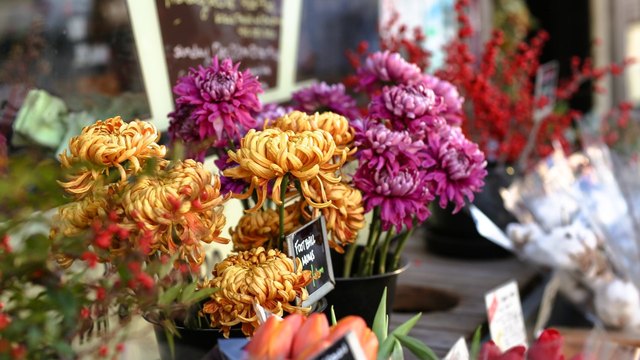
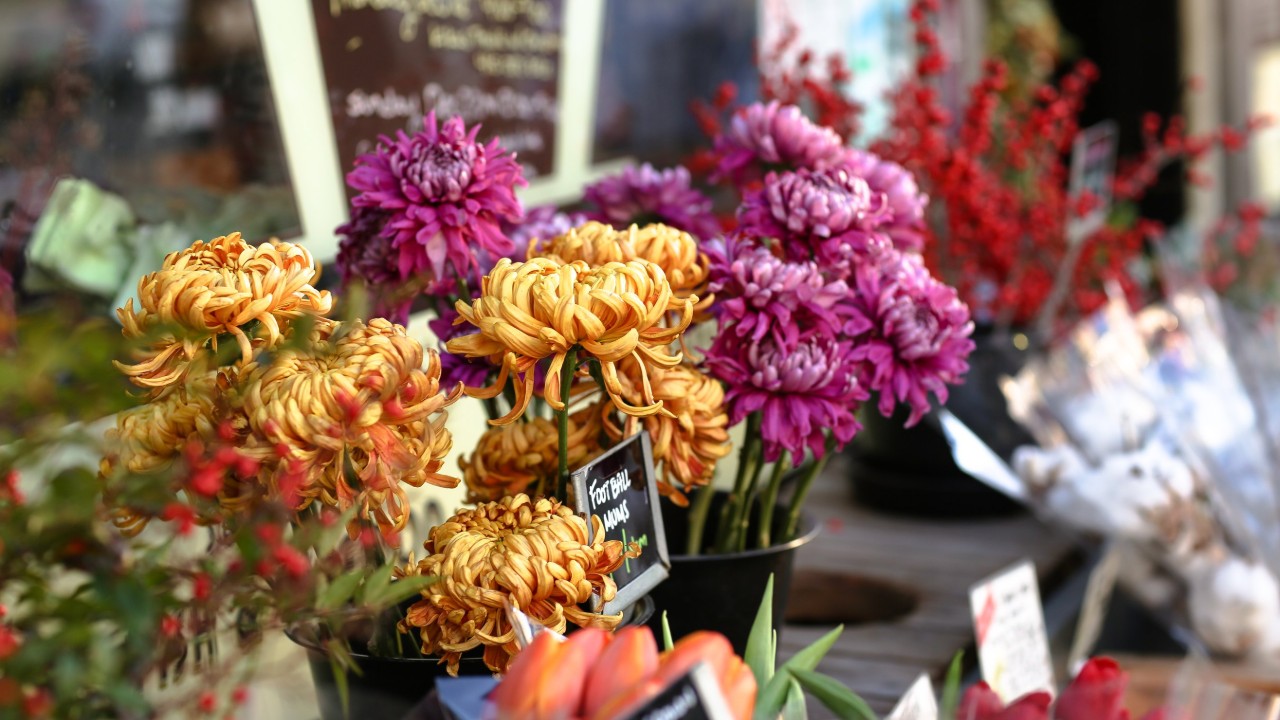
- Drop a photo. A sample cover photo is already made from a CC0 flower-stall photo, so you can see the result first.
- Choose cover photo, logo, or business or post photo, then a shape and a size: 720 px on the short side is Google’s recommended size.
- Crop and move the frame, or fit the whole image on a blurred copy or a colour (logos are fitted on white by default).
- Check the file checks and the Google Maps previews, download, and add the photo in your Business Profile.
What Google says about Business Profile photos (read October 25, 2026)
| What | Google’s words | Source |
|---|---|---|
| File type | “Format: JPG or PNG.” | Google Business Profile Help: Manage your Business Profile photos & videos; Google Business Profile Help: Tips for business-specific photos |
| File size | “Size: Between 10 KB and 5 MB.” | Google Business Profile Help: Manage your Business Profile photos & videos; Google Business Profile Help: Tips for business-specific photos |
| Recommended size | “Recommended resolution: 720 px tall, 720 px wide.” | Google Business Profile Help: Manage your Business Profile photos & videos; Google Business Profile Help: Tips for business-specific photos |
| Minimum size | “Minimum resolution: 250 px tall, 250 px wide.” | Google Business Profile Help: Manage your Business Profile photos & videos; Google Business Profile Help: Tips for business-specific photos |
| Quality | “The photo should be in focus and well lit, and have no significant alterations or excessive use of filters. In other words, the image should represent reality.” | Google Business Profile Help: Manage your Business Profile photos & videos |
| The API’s rule | “With the exception of PROFILE and COVER category, all photos must measure a minimum of 250px on the short edge, with a file size of at least 10240 bytes.” | Business Profile APIs: accounts.locations.media |
| Logo | “Help your customers recognize your business on Google. For businesses that have their basic information, such as a phone number or hours of operation, the Business Profile highlights the logo.” In the API: “LOGO is treated as an alias for PROFILE; any LOGO uploads are automatically mapped to PROFILE. Use PROFILE instead.” | Google Business Profile Help: Manage your Business Profile photos & videos; Business Profile APIs: accounts.locations.media |
| Cover photo | “Set a cover photo at the top of your profile that best represents your business. In some instances, this action doesn’t guarantee the cover photo will show up as the first image for your business.” The API: “Cover photo. A location has only one cover photo.” | Google Business Profile Help: Manage your Business Profile photos & videos; Business Profile APIs: accounts.locations.media |
| Post photos | Posts “can show text, photos, or videos”. Neither the posts help page nor the localPosts API reference gives an image size; the API reference lists a post’s media as a MediaItem, the same object as profile photos. | Google Business Profile Help: Create & manage posts; Business Profile APIs: accounts.locations.localPosts |
| Review and timing | “Pending media doesn’t show up on Google Search or Maps to customers.” “Not approved: The media is flagged and has violated policies.” “It can take up to 24–48 hours before your photos and videos show on your Business Profile.” “Your photos and videos show up on Google only after you verify your Business Profile.” | Google Business Profile Help: Manage your Business Profile photos & videos |
| Maps photo tips | “Avoid screenshots, stock photos, GIFs, collages, heavily edited or otherwise manipulated photos, or imagery created by other parties.” “Avoid adding elements such as borders, text, or collaged images.” “Low quality media may be removed; quality removals can’t be appealed.” | Google Maps: Tips for posting media to Maps, linked from Google Business Profile Help: Manage your Business Profile photos & videos |
| Video | “Duration: Up to 30 seconds long” “File size: Up to 75 MB” “Resolution: 720p or higher” | Google Business Profile Help: Manage your Business Profile photos & videos |
Help pages read in Chrome, signed out, in US English; collapsed sections read from the saved page. The content policy page (Google Business Profile Help: Photos, videos & posts content policy) adds that photos and videos “must also meet additional criteria” without listing them on that page. Gridloom isn’t affiliated with Google.
No cover photo size, no logo size, no post size
Google publishes one set of numbers for every Business Profile photo: the four lines above. We found no separate pixel size for the cover photo, the logo or post photos on any Google page we read, and the API reference only adds the short-edge rule. Several size guides we found give 1024 × 576 for the cover, 1200 × 900 or 400 × 300 for posts, and 480 × 270 to 2120 × 1192 for older cover rules; none of those numbers is on Google’s pages today, and 1024 × 576 is only 576 px tall, under Google’s recommended 720.
So this page makes files that meet Google’s numbers and fit the boxes we measured on Google Maps: a cover photo at 16:9, 1280 × 720 by default (720 px tall, as Google recommends, and wider than the 744 px copies Maps loaded on a phone); a logo as a 720 × 720 square, your logo centred on a colour; and business or post photos at 4:3, 960 × 720 by default, about the shape of Maps’ results-list thumbnails (111 × 84). All three can be 1080 or 1440 px on the short side instead.
Where the sources don’t agree
- AI. The photos help page asks for “no significant alterations or excessive use of filters”. The business-photo tips page, with otherwise the same list, says “excessive use of filters or AI”.
- Who the minimum applies to. The help pages give one minimum, 250 × 250, for all your photos. The API says the 250 px short edge and 10,240-byte floor apply “With the exception of PROFILE and COVER category”, so in the API a logo or cover photo has no published minimum. The tool never goes under 720 px, so both readings are met.
- Logo or profile photo. The help pages say Add a logo and Change logo. The API calls the same picture PROFILE and marks LOGO as deprecated, an alias that is “automatically mapped to PROFILE”.
- Kilobytes. The help pages say “10 KB” and “5 MB”; the API says “10240 bytes”, so Google counts a KB as 1,024 bytes there. Neither says whether 5 MB is 5,000,000 or 5,242,880 bytes, so the tool keeps files under 5,000,000.
- Square or wide. Google’s one recommended size, 720 px tall and 720 px wide, reads like a square, but every place we measured on Maps shows photos in a landscape box (408 × 240, 111 × 84) or at their own shape. Google doesn’t say which shape to use for a cover photo.
- Your cover photo might not be on top. Google lets you “Set a cover photo at the top of your profile”, then says this “doesn’t guarantee the cover photo will show up as the first image” and that “a user-submitted photo may be selected instead” if yours is “low-quality”.
- Our own sample. The flower-stall photo on this page is a stock photo (CC0), used only to show the tool. Google’s Maps tips say to avoid stock photos, so use photos you took of your own business.
How big your photos show on Google Maps: measured
Signed out in Chrome on October 25, 2026, on the Maps place pages of Katz’s Delicatessen (New York), Gimme! Coffee on Cayuga St. and Moosewood (Ithaca, NY), and a Maps search for coffee shops in Ithaca. File is the copy Maps downloaded for that spot. We can’t tell from outside whether a top photo is the owner’s cover photo or one Google picked.
| Where | Screen | Size drawn |
|---|---|---|
| Place panel, top photo | Computer, 1366 and 1920 px windows (also 1024) | 408 × 240 box. The photo is scaled to 408 px wide and centred: a 4:3 photo (file 408 × 306) loses 33 px at the top and bottom, a 3:2 photo (file 408 × 272) loses 16 |
| Left rail, recently viewed place | Computer | 32 × 32, 8 px corners (file 32 × 32) |
| Results list (search: coffee shops in Ithaca NY) | Computer | 111 × 84 thumbnails (files 122 × 92) |
| Place page photo strip | Phone, 390 px, iPhone browser, 3× screen | 248 px tall; the width follows the photo: 373 × 248 (3:2), 331 × 248 (4:3), 248 × 248 (square), 248 × 331 (portrait). Files 744 px wide |
| Results list | Phone, same | 128 px tall: 171 × 128 for 4:3, 128 × 128 for a square photo (files 203 px wide) |
The previews on this page use those boxes. On a computer the top photo is cropped at the top and bottom unless it is wider than 17:10 (408 ÷ 240 = 1.7). We didn’t see a photo wider than that in the panel, so for 16:9 files the preview assumes Maps fills the box’s height and trims about 2% from each side. On a phone, Maps shows the whole photo at its own shape, 248 px tall.
What the tool checks in the file
After it saves your photo, the tool reads the file back and checks: JPG or PNG with the matching extension; between 10,240 and 5,000,000 bytes (if a JPEG at quality 90 is too big, it lowers the quality in steps of 5; if a plain logo comes out under 10,240 bytes, it raises the quality to 95 and then 100); at least 250 px on both sides; at least 720 px on both sides; whether your photo had to be enlarged; no transparent pixels; no EXIF block, so your phone’s GPS location and camera details aren’t in the file; and, for cover and business photos, whether bars were added around the photo. It never adds text, because Google’s Maps tips say “Avoid adding elements such as borders, text, or collaged images.”
The sample, measured
What this page’s tool made from the sample photo in Chrome on October 25, 2026. JPG at quality 90 unless noted.
| Setting | File | Bytes |
|---|---|---|
| Cover photo, 16:9 (the photo above) | 1280×720 JPEG | 200,284 |
| Same, 1080 px short side | 1920×1080 JPEG | 376,466 |
| Same, 1440 px short side | 2560×1440 JPEG | 572,087 |
| Same, as PNG | 1280×720 PNG | 1,853,848 |
| Business or post photo, 4:3 | 960×720 JPEG | 161,497 |
| Square crop | 720×720 JPEG | 131,120 |
| Logo mode (whole photo on white) | 720×720 JPEG | 81,866 |
| Cover, whole photo on a blurred copy | 1280×720 JPEG | 184,643 |
Sample: Mother’s Day flower sale by Erol Ahmed (Unsplash), CC0 (Creative Commons Zero, Public Domain Dedication), via Wikimedia Commons; converted to sRGB and resized to 2700 × 1800. Ivy & Stem Flowers is made up for the mock-up.
.jpg)
What we did not check
- Google Search. Google sent our browser to its google.com/sorry page instead of showing results, so we didn’t measure the Business Profile panel in Search, which is where many people see your photos.
- Where the logo shows. We didn’t find the logo on Maps place pages while signed out, and we didn’t sign in.
- Uploading. We didn’t upload to a Business Profile, so we haven’t seen Google’s own upload checks or approval decisions for these files. Google doesn’t publish why a particular photo is “Not approved” beyond its policies.
- The Google Maps apps, photos wider than 17:10 in the computer panel, how posts and products display, menu photos, 360 photos, videos, and the bulk upload spreadsheet for 10 or more locations.
What this tool doesn’t do
It doesn’t sign in to Google or upload anything; you download the file and add it in your Business Profile. It doesn’t retouch or generate photos with AI, and it adds no text or logos: it crops or fits a photo you choose and saves it at a size Google accepts. It isn’t affiliated with Google. For a file that only needs to be under 5 MB at full size, the compress image to 5MB tool keeps every pixel; for other covers, the Facebook cover photo resizer.
Frequently asked questions
What size should Google Business Profile photos be?
Google gives one set of numbers for every Business Profile photo: JPG or PNG, between 10 KB and 5 MB, recommended 720 px tall and 720 px wide, minimum 250 px tall and 250 px wide. A 1280 × 720 cover photo or a 720 × 720 logo meets all of them.
What is the Google Business Profile cover photo size?
Google doesn’t publish one. Its help pages only give the general photo rules (JPG or PNG, 10 KB to 5 MB, 720 × 720 recommended). On Google Maps on a computer the top photo shows in a 408 × 240 box, so this page makes a 16:9 cover at 1280 × 720 by default. The often-quoted 1024 × 576 is under Google’s recommended 720 px height.
What size should a Google Business Profile logo be?
Square, at least 720 × 720 to match Google’s recommended resolution, as a JPG or PNG between 10 KB and 5 MB. In the Business Profile API the logo is the profile photo: “LOGO is treated as an alias for PROFILE”.
What size are Google Business Profile post images?
Google’s posts help page and API reference give no image size, so the general photo rules apply: JPG or PNG, 10 KB to 5 MB, ideally 720 px or more on each side. This page makes 4:3 post photos at 960 × 720 by default.
What is the minimum photo size for Google Business Profile?
250 × 250 pixels: “Minimum resolution: 250 px tall, 250 px wide.” The API states it as 250 px on the short edge and at least 10,240 bytes, and exempts profile (logo) and cover photos.
What is the maximum file size for Google Business Profile photos?
5 MB: “Size: Between 10 KB and 5 MB.” Google doesn’t say whether that is 5,000,000 or 5,242,880 bytes, so this tool keeps every file under 5,000,000 bytes. Videos can be up to 75 MB.
Should Google Business Profile photos be JPG or PNG?
Either: “Format: JPG or PNG.” For photos, a JPG is much smaller; the sample cover on this page is several times bigger as a PNG (see the table). The tool saves either.
Why are my Google Business Profile photos pending?
Google says pending media is still uploading or processing, or your profile isn’t verified, and “Pending media doesn’t show up on Google Search or Maps to customers.” It “can take up to 24–48 hours” for photos to show, and only after you verify the profile.
Why was my Google Business Profile photo not approved?
Google’s status means “The media is flagged and has violated policies.” Its Maps tips ask you to avoid screenshots, stock photos, GIFs, collages and heavily edited photos, and to avoid adding borders or text; low-quality media may be removed. Google doesn’t publish a reason for each photo.
Why isn’t my cover photo showing first?
Google says setting a cover photo “doesn’t guarantee the cover photo will show up as the first image for your business”, and that “a user-submitted photo may be selected instead” if yours is low quality or other sources suggest it isn’t the best one.
Why isn’t my logo showing on Google?
Google’s help page says to check that your profile has a name, a valid location with a street address, categories, a phone number and opening hours, because the logo is highlighted for businesses that have that basic information.
Can I put text or a logo on my Business Profile photos?
Google’s Maps tips say “Avoid adding elements such as borders, text, or collaged images.” This tool adds no text, and it warns you when fitting a photo adds bars around it.
Can I use AI-edited or stock photos?
Google’s business-photo tips ask for no significant alterations or “excessive use of filters or AI”, and its Maps tips say to avoid stock photos and imagery created by other parties. Use photos you took of your own business.
Is this Google Business Profile photo resizer free?
Yes. Cover photos, logos and business or post photos at 720, 1080 or 1440 px download free with no watermark and no sign-up, and your photo stays in your browser. Pro ($5 for 30 days, paid in USDC) adds the photo set: many photos in one ZIP with a checks.csv.