How to convert an image to pixel art
Photos have millions of colours and soft edges; pixel art has a few colours and hard squares. Getting from one to the other means picking a grid, picking colours and enlarging without blur. Here is what each setting does, measured on the sample.
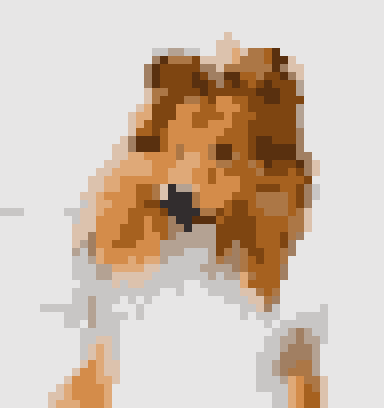
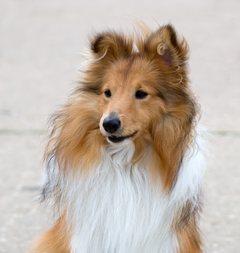
- Drop an image, or look at the sample first: a dog photo already converted to 48 squares wide with 12 colours.
- Pick the grid width (16 to 128 squares) and the shape: the image’s own, or a square crop.
- Choose the colours: the best 12 (or 2 to 32) from your image, Perler or Hama beads, PICO-8, grey or black and white. Add dithering if you want shading, or leave it off and keep “Remove lone pixels” on for clean areas.
- Download the pixel art at 1 px (the real sprite) or enlarged to 4 to 32 px per square with no blur, plus the numbered grid chart and the colour counts as CSV.
How the converter turns a photo into pixel art
Five steps, all in your browser, and you can see each one in the settings:
- Grid. You pick the width in squares; the height follows the image’s shape (or the square crop). Each square becomes the average of the block of photo pixels under it, averaged in linear light so dark and bright areas mix the way light does, not darker than they should.
- Boost. Photos shrunk this far look washed out, so the colour boost (30% by default) raises saturation and contrast a little before colours are picked. Set it to 0% to keep the photo’s own colours.
- Colours. “Best colours from your image” splits the colours with median cut and then refines them with eight rounds of k-means in CIELAB. Similar colours are grouped first and a large flat area counts for less than its size, so a big grey background doesn’t take most of the 12 colours away from the subject. The bead and PICO-8 palettes instead snap every square to the closest colour in that set and keep only the most-used ones, up to your limit.
- Clean-up. With “Remove lone pixels” on, a square whose eight neighbours all have other colours takes the colour most of them share. Those single stray squares are what makes a converted photo look noisy, and on beads or yarn each one is an extra colour change. It’s skipped while dithering, because dithering is made of lone pixels.
- Enlarge without blur. The download repeats each square as a block of 1, 4, 8, 16 or 32 identical pixels. There is no smoothing, so edges stay hard at any size.
What 16, 32, 48, 64 and 128 squares wide look like
The same dog photo at five grid widths, 12 colours, colour boost 30%, no dithering, clean-up on. Measured with this page’s own code in Chrome, October 24, 2026:
| Result | Grid | Squares | Colours used | Lone pixels cleaned | PNG at 1 px |
|---|---|---|---|---|---|
 | 16×17 | 272 | 11 | 31 | 434 B |
 | 32×34 | 1,088 | 12 | 48 | 875 B |
 | 48×51 | 2,448 | 12 | 66 | 1,505 B |
 | 64×67 | 4,288 | 12 | 79 | 2,156 B |
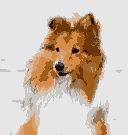 | 128×135 | 17,280 | 12 | 126 | 5,755 B |
At 16 wide it is a brown head on a white chest: an animal, but not obviously a dog. At 32 the black nose and the eyes appear. 48 (the default here) adds the ear tips and the darker fur around the face. At 128 it stops looking like pixel art and reads as a small, posterised photo with the open mouth visible. For a sprite, an icon or a small fuse-bead design, start at 16 to 32; for a portrait, 48 to 64. The 1 px files are the real sprites: 434 bytes at 16 wide, 5,755 bytes at 128.
Same grid, different palettes
| Result | Palette | Colours used | Most-used colours |
|---|---|---|---|
 | Perler beads, max 12 | 12 | 80-19001 White (1294), 80-15208 Toasted Marshmallow (287), 80-19021 Light Brown (202) |
 | PICO-8, 16 fixed | 9 | PICO-8 7 #FFF1E8 (1297), PICO-8 4 #AB5236 (468), PICO-8 6 #C2C3C7 (434) |
 | 4 shades of grey | 4 | #FFFFFF (1503), #AAAAAA (600), #555555 (335) |
 | Best 12 + Floyd–Steinberg | 12 | #E7E6E6 (1400), #C8C6C5 (188), #DCC2AD (144) |
 | Best 12 + Bayer 4×4 | 12 | #E7E6E6 (1258), #C8C6C5 (376), #D48C4A (136) |
All 48 squares wide from the same photo. Bead colours are screen approximations from the open-source beadcolors list, not measured beads; check a real bead before you buy. Gridloom is not affiliated with Perler, Hama, Lexaloffle (PICO-8) or Mojang (Minecraft). Sample photo: “Dog Portrait” by Karen Arnold (publicdomainpictures.net), CC0, via Wikimedia Commons.
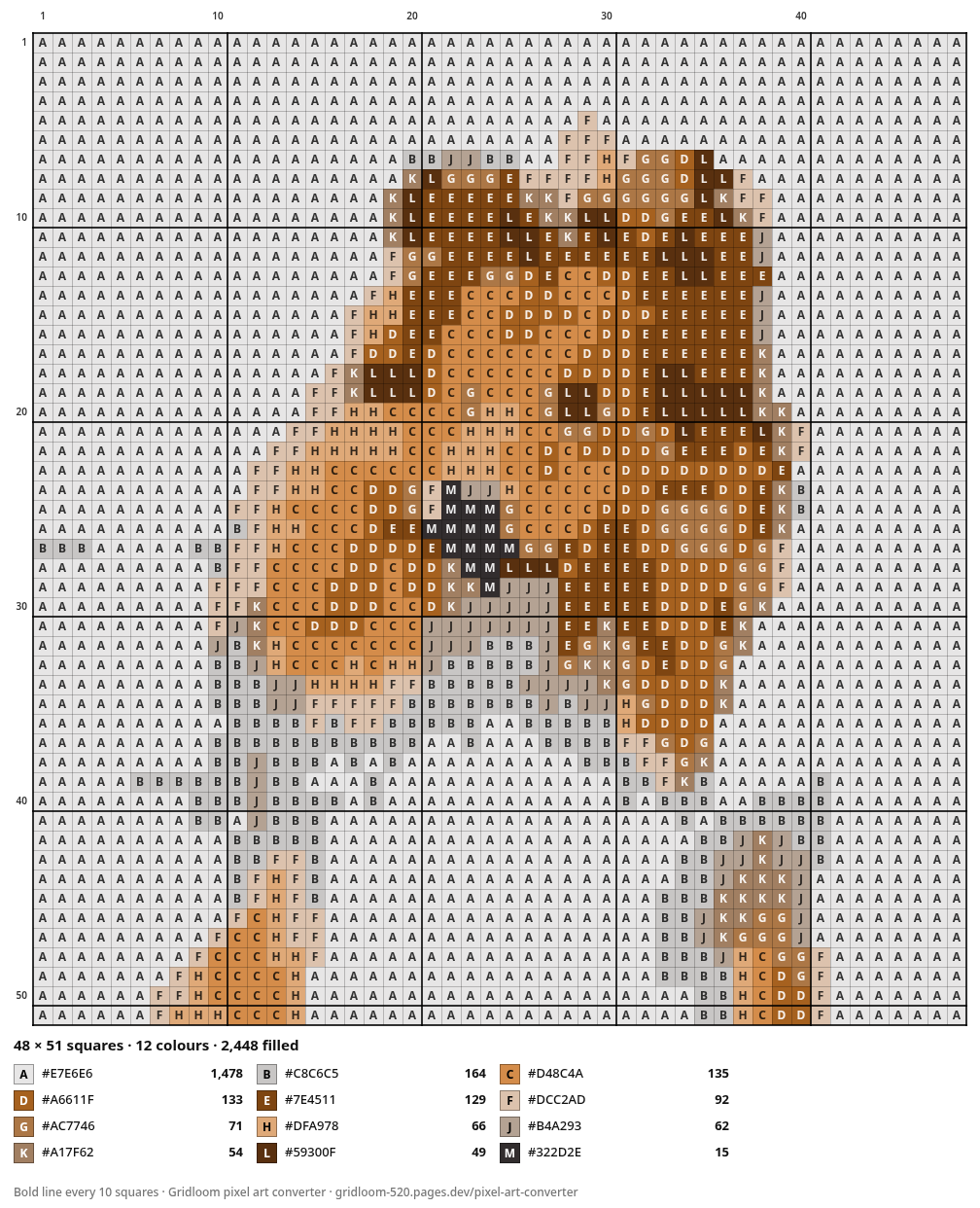
The grid chart: what’s on it
Every square is drawn 20 px wide (40 px on the Pro print chart) with a thin line between squares and a bold line every 10, the way graph paper and bead charts are counted. Columns and rows are numbered at 1, 10, 20, 30… so you can find your place. Each colour gets a symbol (A is the most-used colour, B the next, and so on), and the key under the grid lists the symbol, the colour (hex, or the bead code and name for Perler and Hama) and how many squares use it. The same counts are in the table next to the preview and in the CSV. For the sample: 12 colours, 2,448 squares in total.
That makes the chart usable for anything built one square at a time: fuse beads (one square = one bead), crochet or knitting graphs (one square = one stitch), cross-stitch, mosaic tiles, or graph-paper drawing. For beads specifically, the Perler bead pattern maker splits a design into pegboard pages; for stitching, the cross-stitch pattern maker uses DMC floss numbers.
Why pixel art goes blurry, and the setting that fixes it
A 48-pixel-wide image has to be enlarged to be seen, and browsers, image viewers and game engines usually enlarge by blending neighbouring pixels. That blending is the blur. Each of the tools below has a setting for nearest-neighbour scaling instead. What each one’s own documentation says (read October 24, 2026):
| Where | What the docs say | Source |
|---|---|---|
| CSS (web pages) | image-rendering: crisp-edges: “The image is scaled with an algorithm such as "nearest neighbor" that preserves contrast and edges in the image. Generally intended for images such as pixel art or line drawings, no blurring or color smoothing occurs.” pixelated: “The image is scaled with the "nearest neighbor" or similar algorithm to the nearest integer multiple of the original image size, then uses smooth interpolation to bring the image to the final desired size.” | MDN, “image-rendering” |
| HTML canvas | “This property is useful for games and other apps that use pixel art. When enlarging images, the default resizing algorithm will blur the pixels. Set this property to false to retain the pixels' sharpness.” | MDN, “CanvasRenderingContext2D: imageSmoothingEnabled property” |
| Godot | TEXTURE_FILTER_NEAREST: “The texture filter reads from the nearest pixel only. This makes the texture look pixelated from up close, and grainy from a distance (due to mipmaps not being sampled).” The project-wide setting is rendering/textures/canvas_textures/default_texture_filter, with the note “For pixel art aesthetics, see also rendering/2d/snap/snap_2d_vertices_to_pixel and rendering/2d/snap/snap_2d_transforms_to_pixel.” | Godot docs, CanvasItem; Godot docs, ProjectSettings |
| Unity | Filter Mode: “Point (no filter): The texture appears blocky up close.” versus “Bilinear: The texture appears blurry up close.” | Unity Manual, Sprite texture import settings |
| GameMaker | “Interpolate colours between pixels: Turns on linear interpolation, which basically "smooths" pixels. For crisp pixel graphics, it should be off, but if you have nice alpha blends and smoothed edged graphics it is better left on. This is on by default.” | GameMaker manual, “Windows” game options |
| Aseprite | “The File > Export dialog contains a special Resize field so you can save your copy with other scale.” Its example is “(e.g. 400% of your original sprite size)”. | Aseprite docs, “Exporting” |
So: in a game engine, import the 1 px file and set the filter to nearest/point; on a website, add image-rendering: pixelated; for social posts, download the 8 px or 16 px version so the site has nothing to blur. We couldn’t read Adobe’s Photoshop help (it refused our requests), so we don’t quote its resampling menu here.
PICO-8
The PICO-8 manual lists the console’s “Display: 128x128, fixed 16 colour palette” and says IMPORT “EXPECTS 128X128 PNG AND COLOUR-FITS TO THE PICO-8 PALETTE”. The PICO-8 option here uses the 16 hex values that are widely published for that palette; the manual itself doesn’t print hex codes, so treat them as the community’s values. For a sprite, set the grid to 16 or 32; for a full-screen image, 128 with the square crop. To dither the whole picture instead, the PICO-8 palette converter has more algorithms.
Beads, Minecraft and other places people use this
Fuse beads: perler.com describes its large clear square pegboards this way: “Individually, the boards measure 5.7" square, when assembled together in a 4-square they measure 11.375" x 11.375".” That product page doesn’t state the number of pegs, so we don’t either; count your board. Minecraft: minecraft.net describes map art as “making top-down artworks within the borders of a "chunk" in the Minecraft world, so that when you make a map of it, it just looks like art.” This converter doesn’t match colours to Minecraft blocks; use the chart as a layout and pick blocks yourself. Tomodachi Life: people search for converters for the game’s drawings; we haven’t checked what grid or colours the game allows, so there is no preset for it.
What this tool doesn’t do
It isn’t AI: nothing is generated or redrawn, every square comes from your image by the steps above, and the same image and settings always give the same result. It doesn’t draw outlines or fix anatomy the way a pixel artist would; for a clean sprite, treat the result as a starting point and touch it up in an editor. It makes still images; a GIF becomes its first frame. Free covers grids up to 128 squares wide, PNGs up to 2048 px and the 20 px chart. Pro ($5 for 30 days, paid in USDC) adds 192 and 256 wide, PNGs up to 8192 px, the 40 px print chart and several images at once in a ZIP.
Frequently asked questions
How do I turn a picture into pixel art?
Shrink it to a small grid (32 to 64 squares wide for a photo), reduce it to a few colours (8 to 16), then enlarge it by a whole number with nearest-neighbour scaling so the squares stay sharp. This converter does all three: choose the width and colour count, then download the PNG at 4, 8, 16 or 32 px per square.
What is a pixel art converter with grid?
One that also gives you the grid: this page’s chart PNG draws every square with a thin line, a bold line every 10, row and column numbers and a symbol per colour, with a key that counts how many squares use each colour. You can follow it on graph paper, pegboards or a crochet graph.
What size should pixel art be?
There’s no standard. For game sprites 16×16 and 32×32 are common starting points, and PICO-8’s manual gives its display as 128x128. For a photo that should still be recognisable, 48 to 64 squares wide works; in our measurements the dog photo’s face reads from 32 wide. The 1 px download is the real size; the enlarged ones are for showing it.
16x16 or 32x32 pixel art?
16×16 keeps only silhouettes and a few details; 32×32 has room for eyes, shading and outlines. Try both here: switch the width between 16 and 32 and compare. For a photo of a face or a pet, 32 is usually the smallest that still looks like the subject.
Why is my pixel art blurry?
It was enlarged with smoothing. Download it already enlarged (8 or 16 px per square), or set nearest-neighbour scaling where you use it: image-rendering: pixelated in CSS, Texture Filter Nearest in Godot, Filter Mode Point in Unity, and “Interpolate colours between pixels” off in GameMaker. The section above quotes each one’s docs.
Is this an AI pixel art generator?
No. It doesn’t generate or redraw anything. Each square is the average colour of that part of your image, matched to a palette, so the same image and settings always give the same pixels. If you want art that isn’t traced from a picture, you need an editor, not a converter.
Can I use it for crochet, knitting or cross-stitch?
Yes. Use the grid chart: one square is one stitch, the bold lines every 10 help you count, and the key gives the number of squares per colour. We don’t calculate yarn amounts or gauge. For cross-stitch with DMC floss numbers, use the cross-stitch pattern maker.
Can I make Perler or Hama bead pixel art?
Yes: choose Perler beads or Hama Midi beads as the palette and the chart’s key lists bead codes and how many of each. The bead colours are screen approximations from an open-source list. To split a design into pegboard pages, use the Perler bead pattern maker.
Does it work for Minecraft pixel art?
You can use the grid chart as a layout, square by square, but this converter doesn’t match colours to Minecraft blocks, so you pick the blocks. minecraft.net’s map-art article doesn’t give a pixel size, so we don’t add a Minecraft preset.
How many colours should pixel art have?
Fewer than you think. The sample uses 12. Sprites often use 4 to 16. Fewer colours give bigger flat areas and a cleaner look; more keep photo detail. Move the slider from 2 to 32 and watch the count table; on beads or yarn each extra colour is something more to buy or switch.
Should I use dithering?
For flat, clean pixel art, no: leave it off and keep lone-pixel clean-up on. Dithering (Bayer for a regular cross-hatch, Floyd–Steinberg for a grainier mix) fakes shades the palette doesn’t have, which suits photos with few colours, like PICO-8 or grey, but every dot is a separate square on a chart.
Is it free, and is my image uploaded?
Free with no signup and no watermark: grids up to 128 squares wide, PNGs up to 2048 px, the grid chart and CSV. Nothing is uploaded; it runs in your browser. Pro ($5 for 30 days, paid in USDC) adds 192 and 256 wide, PNGs up to 8192 px, a 40 px print chart and batch ZIPs.