How to do it
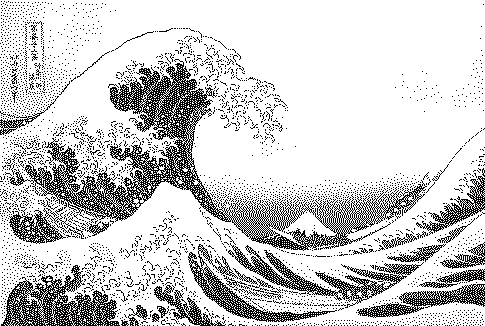
Convert any picture to the 16-colour PICO-8 fantasy-console palette, with perceptual OKLab matching and your choice of dithering.
- Open or drop an image (a sample is preloaded).
- The preset above is already applied. Adjust contrast, palette and strength to taste.
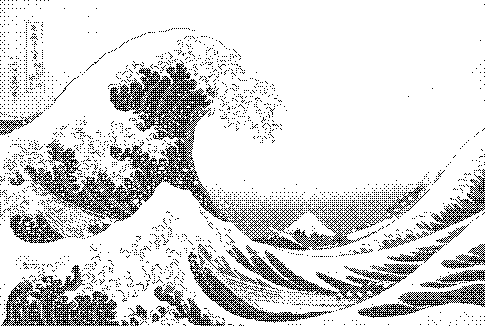
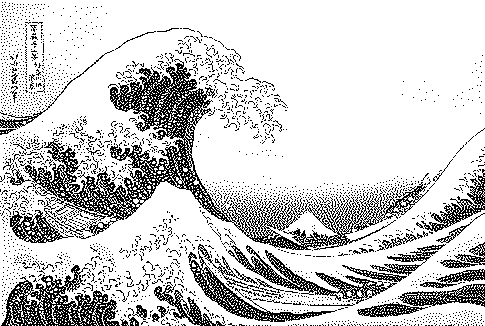
- Compare with other algorithms from the Algorithm menu.
- Download PNG (free up to 1000px) or SVG/GIF with Pro.
Frequently asked questions
How do I keep colours natural with only 16 colours?
Use OKLab matching (the default) — it measures colour distance the way the eye perceives it, so skin and skies map to sensible palette entries.
Should I use Bayer or Floyd–Steinberg for PICO-8?
Bayer 4×4 looks more like hand-made PICO-8 art and stays stable in animation; Floyd–Steinberg preserves more detail for still images.
Can I export at 128×128?
Yes: resize your image to 128 px wide before loading, or set pixel scale, then export PNG.
Is my image uploaded?
No. The dither runs locally in your browser; nothing is sent to a server.
Is it free?
Yes. Every algorithm previews free and PNG exports up to 1000px are free with no watermark or signup. Pro ($5 for 30 days, USDC) adds print-resolution exports, SVG, GIF and video.