Gridloom vs Photopea for dithering

Photopea is a full Photoshop-style editor in the browser. It can dither when you reduce colours (for example indexed-colour or export with a limited palette), but dithering is not its focus.

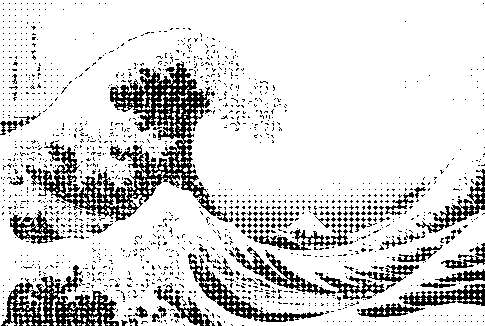
Diamond screen dithering example (1-bit, Great Wave)
Diamond screen
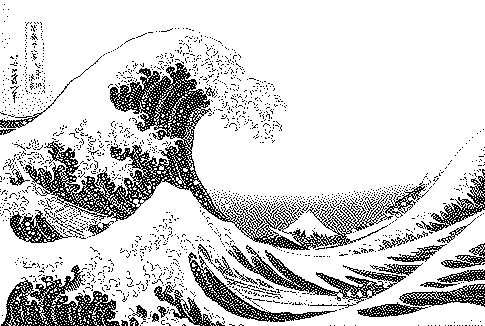
Atkinson dithering example (1-bit, Great Wave)
Atkinson
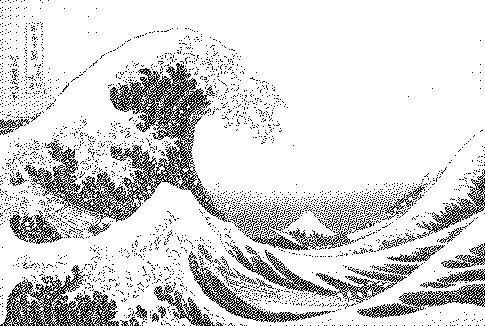
Blue noise (void-and-cluster) dithering example (1-bit, Great Wave)
Blue noise (void-and-cluster)
GridloomPhotopea
PriceFree; Pro $5/30 daysFree with ads; paid tier removes ads
PurposeDedicated dithering, halftone and pattern studioGeneral photo editor
Algorithm choice23 algorithms with strength, serpentine, jitter, angleA few options when reducing colours
Live algorithm comparisonYesNo — re-run per setting
Layers, masks, textInk layers onlyFull editor

When Photopea is the better choice

You need full editing — selections, masks, text, retouching — and dithering is a final step.

When Gridloom is the better choice

Dithering is the look you're after and you want to compare algorithms and palettes live, or export riso separations, SVG or GIF.

Competitor details reflect what we could see at time of writing (October 2026); check their site for current features.

FAQ

How do I dither in Photopea?

Reduce colours (e.g. indexed colour mode or save with a limited palette) and choose a dither option. For finer control over the algorithm, use a dedicated tool like Gridloom and bring the PNG back into Photopea.

Can I use both?

Yes — edit in Photopea, dither in Gridloom, finish in Photopea.

Try Gridloom free →